Showing posts with label Android. Show all posts

Thursday, 30 October 2014

How to use Titanuim Backup on android


Titanium Backup has been one of the most popular apps on the market for some time, and with good reason. It can be used to backup all your important app dada, system data, and even WiFi passwords on your handset.

Now, Android is a very stable operating system, and it’s pretty rare to run into a system or app killing bug. Even so, it’s better to be safe than sorry, you never know when a crippling update or malicious app might cause a problem. If you’re planning on removing apps using your newly found root permission or are planning to install custom versions of Android, then backing up your device is essential.

First things first, you’ll need a rooted handset before you can use Titanium Backup. Following that the app will need to be granted root permissions on your handset, but that’s simple enough. You’ll be prompted by Superuser once you run Titanium Backup, and can select to give it permanent access so you won’t be prompted again.

One word of caution before we proceed. If you’re using Titanium Backup to restore apps in between installing ROMs DO NOT attempt to restore system apps or their data across ROMs, as this will cause all sorts of crashes. Individual apps work fine, but system data will be incompatible.

Now that everything is setup we can begin.

Performing a mass backup

At first glance, Titanium Backup doesn’t appear to have the friendliest looking interface, the black and grey theme could certainly use a makeover. But don’t let that put you off, everything you need is actually very easy to find.

Frustratingly though, probably the most useful tool for performing a mass backup is actually hidden in another menu, rather than on the Backup/Restore tab where you’d think it would be. Instead, click the Menu button on your handset, and then select the “Batch actions” option under the “General” section, it should be the second option on the list.

TI making a backup

Batch actions can be accessed from your devices menu button, or via the icon in the top left of Titanium’s home screen.
The all-important backup section is located right here, giving you a wide variety of options regarding app and system data. System data includes Bookmarks, WiFi information, calendar events, etc. If you’re performing a backup for the first time then want to use the “Backup all user apps + system data” option, or at the very least the “all user apps” function. Clicking “Run” will present you with several more options to refine exactly what you’d like to backup. Once you’re satisfied with the selection, tap the green tick in the top right to begin the backup.

Patience is the key here as this can take a while, especially if you have lots of large apps installed.

If you’ve performed backups in the past and simply want to make a backup of newer apps you’ve installed recently, the “Backup new user apps” option on the “Batch actions” menu is the best choice. Alternatively, you can use the “Backup/Restore” tab on the Titanium homepage to select individual apps to backup.

Creating a recovery backup .zip file

Whilst the above backups will protect you from most bugs, they won’t be of much use if you experience a severe error that prevents your device from booting properly, such as corruption in a system file, or a bugged out launcher. This is where recovery compatible .zip files come in handy, as the backup can be restored without having to boot into Android. However, this is a donate version only option, but might be worthwhile if you’re changing ROMs a lot.

Head on over to the batch options again and scroll down until you see the “Recovery Mode” category. Here you can select the apps that you’d like to include in the backup .zip file, choose between apps or data only, and name the .zip file appropriately so that you can remember what it is.

If you ever need to recover your device using this boot file, enter ClockworkMod recovery and choose install zip from SDCard.

Scheduled backups

Generating a backup every time you install a new app is a bit of a pain, and it’s unlikely that anyone will remember to make a backup every week or month anyway. Fortunately, Titanium Backup now includes a scheduled backup option.

Over on the main menu tap the “Schedules” tab and you’ll be presented with two options. The first choice labelled “redo backups for modified data” will schedule backups only for app data which have been changed since the last backup. This could include games or changes make to specific app data.

TI schedule
The schedule has plenty of options to control automatic backups, so you don’t have to mess around with Titanium regularly.
The second option is probably the most important, as it will backup any new apps, system data, and updates since the previous update. Click “edit” to make changes to the schedule. There are all the necessary options to adjust the time and date of when backups are generated, but users can also set the charge state of the device required before making a backup, so as to prevent shutdowns mid backup, and there’s also a choice regarding filters and what to do once the backup has completed.

Restoring from backup

Alright, you’re protected in case your handset suffers a minor meltdown, but the next important step is being able to restore your apps and settings should anything go wrong.

In the batch actions, yet again, you’ll find a list of options for mass restoring your data. “Restore missing apps with data” will replace any content that is missing from your handset after a wipe. Alternatively restoring all apps with data will replace any existing apps with the backed up versions of them created earlier. There’s also a rather helpful option to only restore newer versions of user apps if you’re reinstalling your system.

However, the option that’ll you’ll most likely be interested is the “restore missing apps + all system data” option, which will put everything back to where it was when you created the backup. Although I can’t stress enough, that system data shouldn’t be restore if you’re switching ROMs.

TI restore options

Batch and individual restores can both be performed. There are also some additional commands when looking up the options for each app.
If you discover that a specific app has developed a fault, say after a bugged update, and you want to restore it to a previously saved version, then this can be done by clicking on the backup/restore option on the main page. Here you can pick the specific app or piece of data from the list. Once tapped, a list of backups will appear along with a list of other functions to create backups, etc. Here you can manage your individual app backups, or can restore the app to a specific date by clicking on the corresponding restore button.

Managing bloatware

Whilst looking at the specific apps you’ll probably have noticed the Freeze function. Freezing apps is a handy tool that will allow you to completely stop apps from running without having to uninstall them. Usually this is used on factory installed apps that you don’t want to use. This option is a paid for only function, but it’s very helpful if you want to stop an irritating tasks from running or to see how your handset will react before uninstalling a piece of software.

Root permission also means that Titanium Backup can be used to uninstalled unwanted apps and bloat ware. A word of caution before doing this with any pre-installed software, uninstalled essential apps can cause force close errors and even render your handset virtually unusable if not done with care, so I thoroughly recommend backing up your apps and system first, preferably with a recovery zip file too.

Special features

That’s the really important stuff out of the way, but Titanium backup includes plenty of additional advanced features if you want to make the most out of your backups.

Firstly, backup data can be imported from by going to Titanium’s main menu and scrolling down to the import backup option. So you don’t even need to store all your backups on your handset, the files can easily be moved back and forth from your PC to your phone.

TI extra options
Slower compression will save on storage space, but be prepared to wait a little while while backups are performed.
If you’re short of internal memory storage, there’s also the option to move apps to the SD card. However, this will cause certain apps to malfunction, so it’s only recommended to use on software which don’t integrate closely with any other part of Android, such as games.

Titanium Backup features many more options under the configurations menu, including tweaks to the type of compression used to create backups, the maximum number of backups to keep for each app, and whether or not to store market links for apps. In fact, apps can even be disconnected from the marketplace, so automatic updates can be left on for apps but then manually disconnected for certain apps, if you so desire.

Cloud backups

An extra feature for those who purchase the PRO edition is the ability to send backup data to various online services, including Dropbox and Google Drive. Although not essential, these options are very helpful if you need to wipe your SD card, or if your SD card ever develops a fault. To enable syncing to one of these services, tap your phone’s menu button and then go to “Preferences”, the options are under “cloud sync settings”.

And that concludes our guide on Titanium Backup. Hopefully that’s everything you need to protect your handset from unexpected faults.




:Video:


Wednesday, 29 October 2014

Hack Playstore Using Freedom App


Freedom is an app which enables free in-app purchases provided by the google play store. One important point though, is that you must have your device rooted before using this app. If you don't know, what rooting is, then you must first search it, collect some information and then root your phone. We have provided a FAQ below, too.

You can use it in any game, but there's no guarantee that all of the games and apps work with it. However it works on most of the games and you must therefore surely give it a try. There are newer versions out every week or month, so maybe all the games/apps can be hacked with it in the near future.


Installation Instructions:


Follow these instructions carefully to get freedom working:


1. Install the downloaded apk file in your phone
2. First go to step 7, if freedom works then its all done. If it doesn't work then follow the below steps in sequence.
3. Download and install Market Unlocker from here.
4. Open Market Unlocker => Tick Enable Unlocker
5. Now, swipe over to the left (Market Tab)  => Scroll until you find Russian MTS 25001 => Select it
6. Go to Settings => Date & time => Select time zone => Moscow (Optional).
7. Open Freedom => Choose any app or game => Wait for the process => Enjoy free in app purchases.


Wednesday, 15 October 2014

Android 5.0 Lollipop Features List


Key Android Lollipop 5.0 Features


Android 5.0 Lollipop is Google’s latest operating system update for smartphones, tablets and even Android Wear-running smartwatches. It's arriving in the coming weeks and the newly announced Motorola Nexus 6 and HTC Nexus 9 tablet will be among the first devices to run on it. 

New look, dubbed Material


The first thing you'll notice about Android 5.0 is that it looks quite different to the current Android 4.4 Android, and it's not – as we once thought – like the experimental Experience UI used in the Nexus 5. 

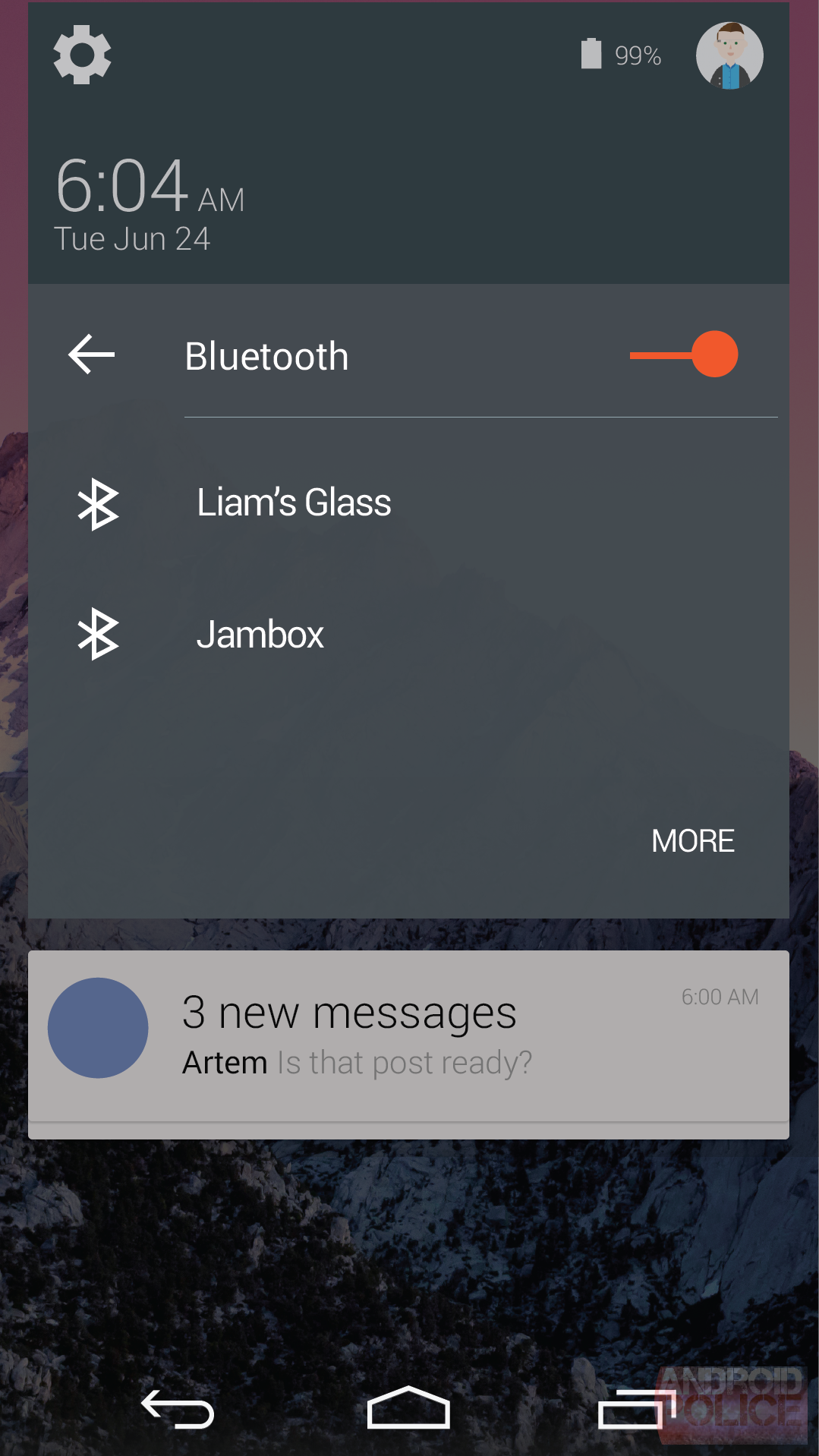
Google has come up with a new interface look, called Material. It's a lot more vibrant that current Android, and it makes much more use of interface layers. This is quite the opposite of recent trends in UI design, which have all been about making interfaces as flat and simple as possible. Material may be simple, but it's not flat.

As part of the new Material interface, Google is also introducing two new widgets. The first is a more power-efficient RecyclerView widget, which can be used for features like scrolling through Contacts. The second is a new CardView widget, which has a very Google Now-inspired feel and should ensure widgets run smoother.

Real-time Shadows


The depth is not just about the way the interface is laid out, either. Android 5.0 introduces real-time generated shadows for interface elements.

This should really help to spruce-up the look of Android, giving it some of the visual tactility of iOS 7. We have seen attempts at this kind of more substantive look in some third-party custom interfaces before, but they generally don't get it right. 

Others end up looking busy, and there are often performance hits to any visual flashiness. But we don't expect any of that with Android 5.0. 

Redesigned nav soft keys


The look of the nav buttons that are a key part of Android have been changed as well. Their functions seem to be the same as ever – back, home and recent apps – but the look seems to have been pilfered from a PlayStation controller. 
A triangle, circle and square do manage, strangely enough, to encompass what each of the soft keys are for well enough, though. And the extra simplicity of this is no doubt all a part of the Material look. 

Dynamic 'heads up' notifications


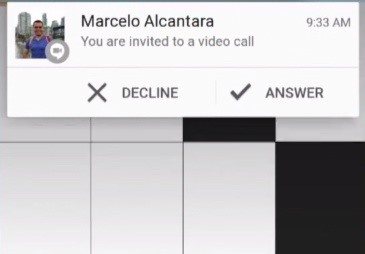
Another element of Android 5.0 that we've seen in some third-party Android interfaces is heads-up notifications. These pop-up on top of whatever you're doing, meaning you don't have to go to an app or drag down the notifications bar to find out what's going on when your phone beeps. 


More coherence across tablets, phones and PCs


Google is keen to big-up that the Material look is going to be fairly consistent between phones, tablets, desktops and laptops. It wants to offer that smooth cross-platform feel that you get when you really buy into the Apple universe, with an iPhone, iPad and MacBook. 
Of course, on the PC front Google is only really going to have access to the Chrome interface – it can't reskin Microsoft's Windows. But the look on a laptop isn't a million miles removed from the tiles of Windows 8.

Redesigned Gmail


It's not just the Android interface that has been given a refresh. The Google apps have too. Much more colour has been injected into Gmail, and the look of the app is both a lot cleaner and more modern.
The square avatar pics of current Gmail have also been traded-in for circular ones. 
It seems highly likely that you'll have control over what apps can send you these pop-up notifications. As otherwise they'll become very, very annoying. 

Expanded notifications


This is something Google introduced in recent Android updates and now users will be able to view notifications in more detail in three different ways. There's text, inbox and image all of which can provide you with additional context for the notification. It's something that Android Wear smartwatch owners are also going to benefit from greatly as well.

The idea is to evolve one of Android's core features to be more useful and deliver the information when you really need it.

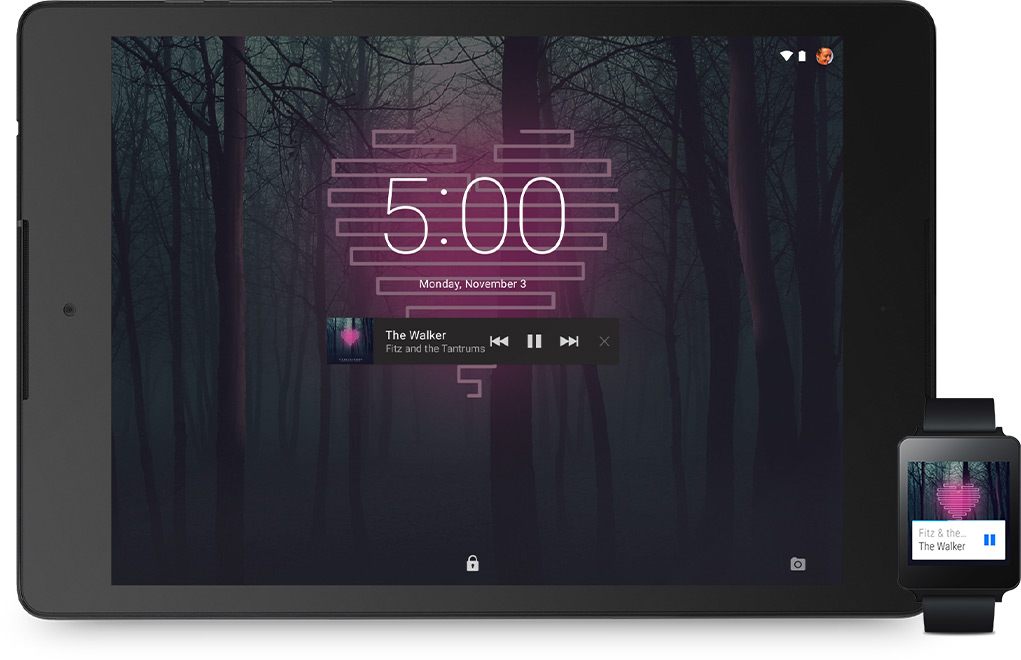
New lock screen notifications


Notifications also have a real spot on the lock screen. And, again, this is something that has been common for some time in many custom Android interfaces. 
Each notification shows up as a little bar across the screen in high-contrast fashion, making them super-clear. It looks as though four different notifications can be displayed on the lock screen at once on a normal-size phone.

3D multitasking


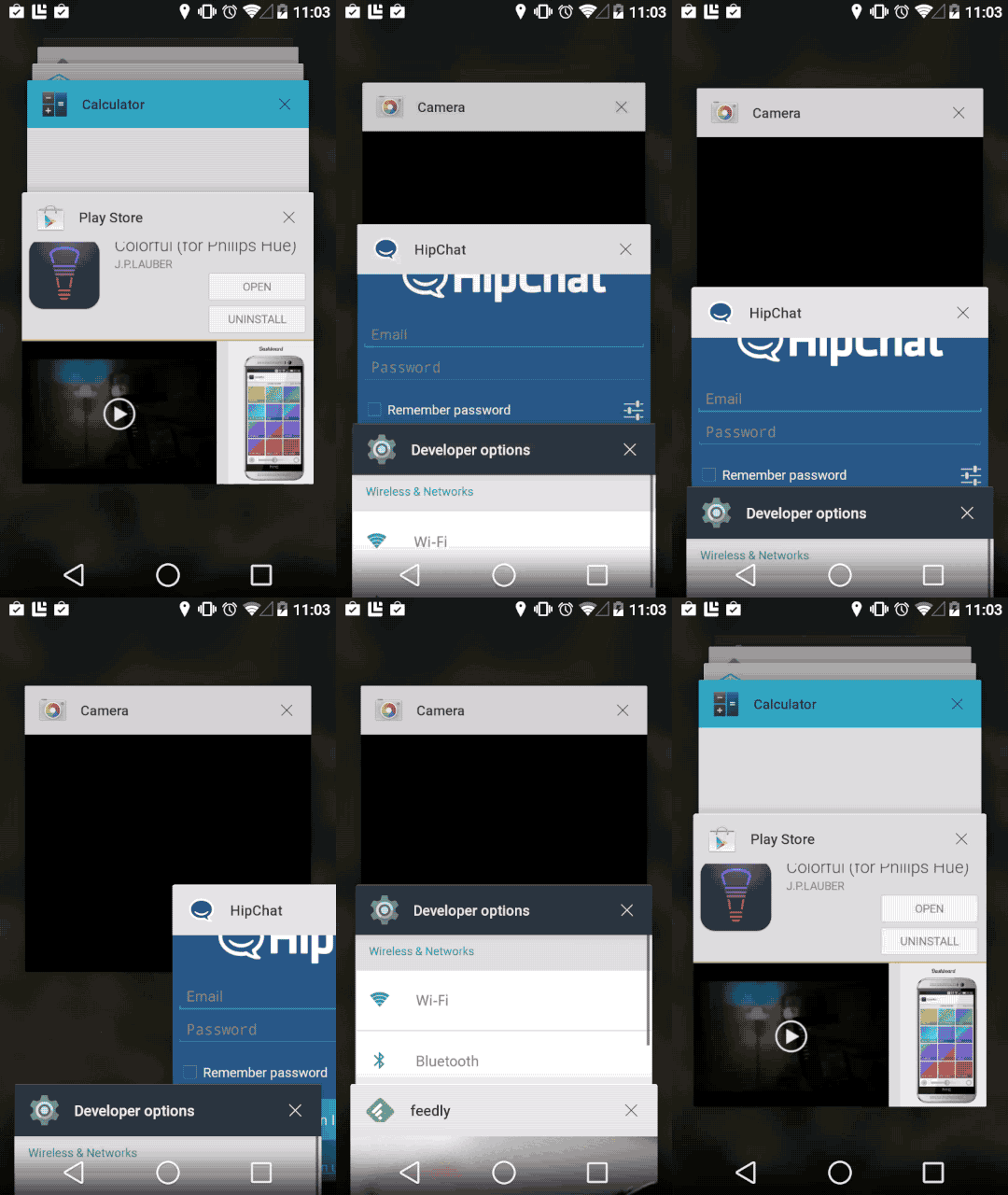
A minor visual tweak of Android 5.0 L is the new multitasking menu. It still shows your 'recent' apps, but rather than being displayed as a 2D scroll of apps, it's now a 3D cascade of app tiles. 
It looks quite similar to the tabs screen of the Chrome browser for Android – no surprise there. The look of the Android take is better, though – sharper, simpler and with good use of those new realtime shadows. 

Direct links to apps from Google searches


Developers will now be able to have links to their apps take the place of websites in web searches. What this means is that you'll be able to head directly to a specific part of an app right from the Chrome browser on your phone. 
This feature has been accessible to a handful of apps to date, but now it'll be available to all developers. If you're worried about being launched from Chrome into some dodgy app, don't be. Just as lesser sites don't tend to feature too highly in your search results, ropey apps won't either. 

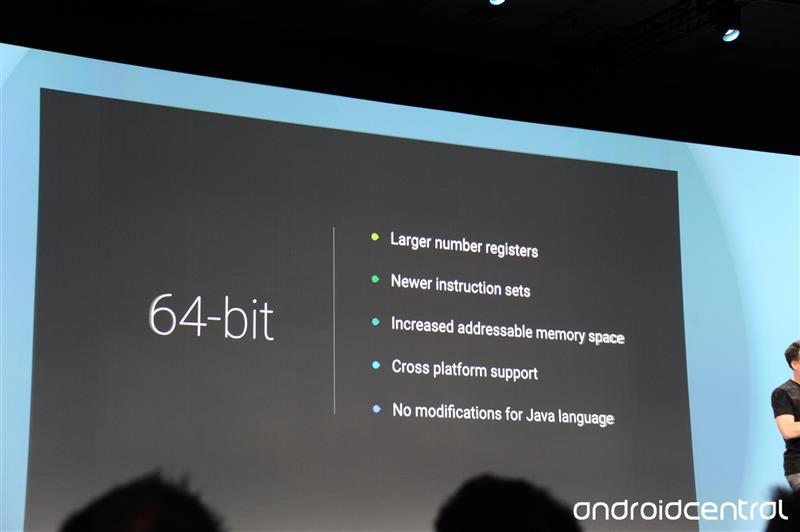
64-bit CPU support


One new feature we knew was coming – support for 64-bit CPUs. As 64-bit CPUs clearly designed to work with Android devices have already been officially announced, this one was obvious. 
As well as letting many more instructions take place simultaneously, having a 64-bit CPU really lifts the lid on how much RAM Android phones/tablets can actually make use of. With a 32-bit processor the limited address space means that only so much RAM memory can be accessed at once. 

Android TV


While not a core part of the Android system, Android TV is a huge development in the Android universe. It's a version of the platform designed for your TV, and it'll eventually be built into set top boxes and TVs.
You'll control the thing with your Android phone, and will be able to play Android games, watch video and do pretty much anything you can with your Android phone.

Improved GPU support


Google has improved the coding of Android's execution of graphics, allowing for much more advanced visuals. It has been dubbed an 'extension pack', and will finally make top-end processors start to make a bit more sense.
The extension pack enables tesselation, geometry shaders, computer shaders and ASTC texture compression. The latter is an advanced image compression algorithm that will allow for highly effective reduction in the size of art assets. 

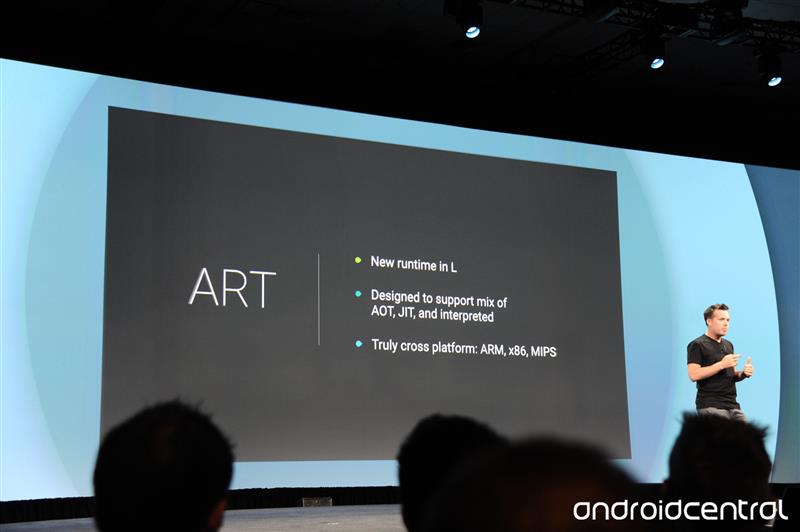
ART runtime is in


Android 5.0 L switches over to the ART runtime. If you've read our Android 4.4 tips and tricks article you'll know that this is something people with recent Android phones have been able to try out for themselves for a while.
At present Androids use the Dalvik runtime as standard. ART is significantly quicker, but uses a bit more storage space for apps. It's a fair trade off in our opinion.

Smartwatch as authentication


One of the funkiest little additions in Android 5.0 L is a new way to bring your phone out of standby securely. Android Wear watches will work as an authentication tool, meaning you won't need a password to unlock your phone if you're wearing your watch. We're not quite sure yet exact what tech is used to do this. But it is neat.
BUT, of course, if you get mugged your attacker is probably going to nick your Android smartwatch as well as your shiny new Galaxy S6 mobile phone. But it should at least stop your friends from being able to tweet on your behalf should you nip of to the lav for a minute. 

Support for USB audio


One of the new APIs of Android 5.0 L is USB audio. This means you'll be able to transmit digital audio right from a phone's microUSB port, bypassing the DAC stage used when you listen through a headphone jack. 
What will this mean? It opens up an Android phone to being a genuine audiophile source when paired with a decent outboard USB DAC, and could mean we start to see USB headphones – something Apple is rumoured to be working on through Beats. The Nexus 5 supported USB audio output, but it is not native to all Android 4.4 devices. 

Battery efficiency optimisation

Android 5.0 L gets some new battery features, including a reworked Battery Saver mode. Android 4.4 falls well behind the competition in this respect – where phones like the Galaxy S5 have extreme power-saving modes on tap, the basic Android 4.4 battery saver is rather rudimentary. 

The lock screen will also tell you how long your phone will take to charge when plugged in – a clever little tweak that seems so obvious now it's in place. 

Bluetooth 4.1 support


Android 5.0 L offers native support for Bluetooth 4.1. Top-end phones have Bluetooth 4.0 these days, but what's the difference?

Bluetooth 4.1 doesn't clash with 4G signal like Bluetooth 4.0, and it gives manufacturers much more control over the timeout times of the connection. This gives much more scope for controlling power consumption. Bluetooth 4.1 also improves connectivity, letting Bluetooth peripherals talk to each other more easily. 

Android Auto

A major new bit of Android 5.0 L is Android Auto. This is a bit like Apple's CarPlay – it's an in-car system that runs off your Android phone. 

You jump into your car and your Android 5.0 L mobile will start transmitting Android Auto to the screen on your car's dashboard. Its interface looks quite a lot like Google Now and Android Wear, and will of course let you GPS navigate to wherever you want to go. We imagine it'll be a lot more open than CarPlay too. 

Monday, 8 September 2014

How to Change Boot Animation on your Android Device

                  Personalizing our mobile phone's with some brand-new hacks and pranks make the colleagues to freak, so attempting something unusual and brand-new tweak in Android mobiles will certainly be no question regarding the freaking of your close friends! As Android OS is transferring quick and it is considered as the finest Operating System for Mobile system. So now more and more users are joining everyday and few are even exploring the full potential of this awesome platform.

Have you ever before attempted to transform the Boot Animation of your Android mobile? Transforming the start-up animation in windows is still feasible, however its not that easy to be customized in Android? So if you ever gave a thought on altering your Android Mobile Boot Animation then you seem to be a lucky guy as there are 2 techniques to alter boot animation in android. Let's peep just how to alter the start-up animation in Android Operating System.

Customizing the Android Boot Animation

So now the two techniques which we are going to use includes one that the easiest way and it includes using a simple application but you still need to have the root access on your android device, so you can check out how to root your android device for full tutorial on gaining root access.The second one is little bit tricky as it includes manually transferring the boot animation file using the file manager and then changing some parameters to get the animation running and live on your android device. So we will see both the methods below.

#1. Changing Boot Animation using App

Well this is the easiest way, we will be using a free application that will make this customization process a lot easier.

1. You need to download a nice boot animation for your android device, well either you can download the boot animation from http://androidbootanimation.com (well more of these could be found @ XDA Developer)2. Now you need to install a simple and free application called "Boot Animations" well its available for free in google play store but you need to have root access. (You can check out How to Root your Android Device Easily)

3.After you have successfully download the boot animation and installed the application, open the app and choose Backup/Restore.
4.Now simply backup the original bootanimation for future use, in case you would like to come back this will help you out.
5.Now just transfer the bootanimation you have downloaded from the above site and make sure to rename that file as "bootanimation.zip"
6.Now simply locate this new file you have transferred using the application opened above and choose Install.
That's it now simply reboot your phone and your new boot animation will be live dazzling your device. Well this was the one way and it could be said as the easiest way for customizing your android boot animation.

#2. Changing Boot Animation Manually

Well this second method is little bit tricky but will surely help you out if you are not able to customize your boot animation using the above method.

1. As I have mentioned above you need to grab a nice boot animation either you can google for it or download it here http://androidbootanimation.com (well more of these could be found @ XDA Developers)

2.Now Install any free File Manager application, just making a search for Xplore or something else that works best for you.

3.Now navigate to /system/media and search for the original bootanimation.zip file that will be present there.

4.Now just press and hold on the file for little and choose Rename option, now simple rename the file as "bootanimation.zip1"
5.Now you need to copy the downloaded file to /system/media and then you need to make sure that the file name is bootanimation.zip for it to work perfectly.
6.android-file-permissionsNow once again press and hold on this new copied file and choose permissions and then make sure it looks something like on the right.
7.So now after you have check marked the appropriate options simply press OK.

8.That's it now you can reboot your phone and simply restart it again to see the customized animation live.

So guys that's it, this ends this another awesome post on customizing or changing your android boot animation pretty easily with some of the best themes available by the hackers and creators. Well I hope you won't find any problem following this tutorial, well the tutorial looks little bit lengthy but its worth it.

All Rights Reserved. 2014

Powered By Masterfones Lmtd | Published By Masterfones.tk Designed By : MfCreation

Top